 YESWAH
 Windows user guide
Follow the Windows screenshots to install YESWAH, set up live captions, and route audio for meetings and social apps.
Get the installer
Download YESWAH (.exe). This online installer requires an internet connection and human verification.
Verify and install
Open the installer, complete human verification and follow the prompts to download and install the release. Open YESWAH, follow the sign-in prompts and choose your scenario, languages and audio devices.
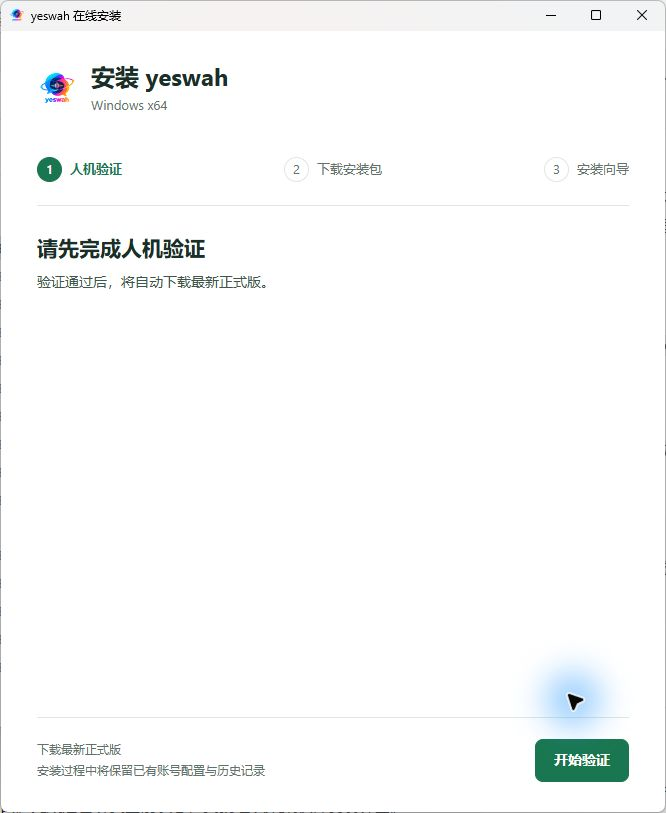
Verify and install · Windows x64 · YESWAH (.exe) Live streams and cross-language interaction
Choose Live mode (直播模式). Set the input and output languages, then select microphone, video audio or application audio. When a picture source is required, select its type and device/window. Complete the required settings, follow the Start translation (开始翻译) prompt and check input/output levels first.
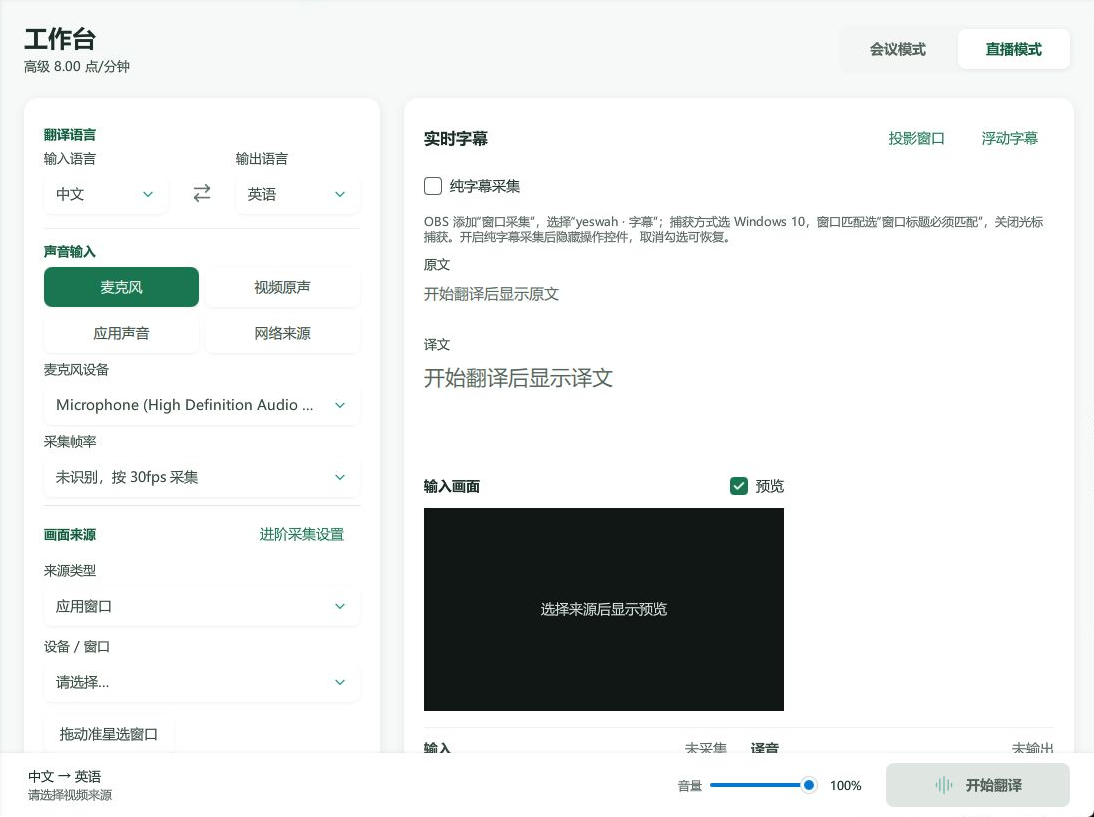
Actual YESWAH Windows interface. Click to enlarge; screenshot text stays in its original language. Show captions
Live mode includes a projection window (投影窗口) and floating captions (浮动字幕). In OBS, add Window Capture and select yeswah · 字幕. Follow the app guidance for capture method and exact window-title matching, and disable cursor capture. Preview before going live.
Meetings and social apps
Open your meeting or social app on Windows, then choose Meeting mode (会议模式). Manually select your language, the other person's language, your physical microphone and their audio source. Check the virtual microphone and listening device. Social apps are a use case, not a separate mode button.
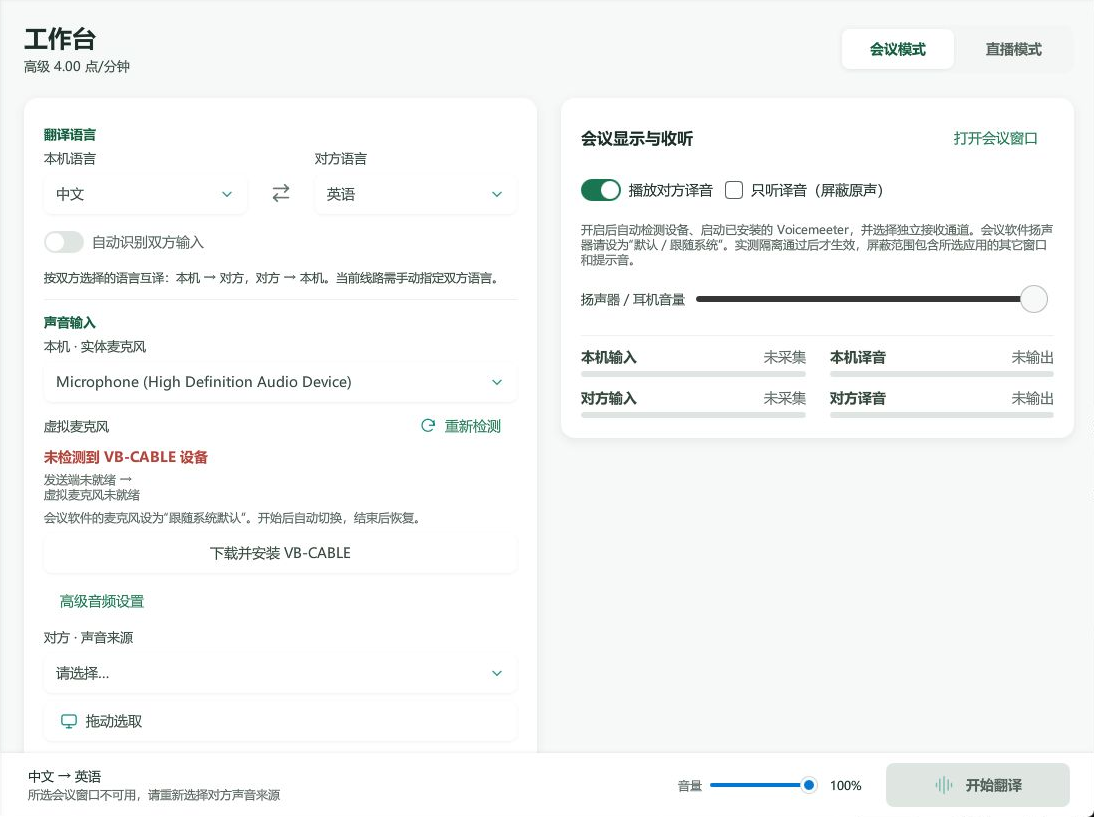
Actual YESWAH Windows interface. Click to enlarge; screenshot text stays in its original language.
Available for Windows x64. Actual YESWAH Windows interface. Click to enlarge; screenshot text stays in its original language.
Help & support
Contact official support
Contact official support on WeCom or by email. Tell us your device and describe the issue.

Scan to add us on WeCom; tap to view the original
Frequently asked questions
Does a website in 12 languages mean the app supports them all?
Website and app languages are separate settings. Check actual app support before downloading.
What if a download fails or I need help?
Contact official support on WeCom or by email. Tell us your device and describe the issue.
 YIMIAOWA Translator
 YiWa AI
 veFrog Interviewer